Integrations
Integrations is a marketplace-style catalog for connecting external services and tools. Integration packages are listed from the server and can be enabled or disabled per organization.
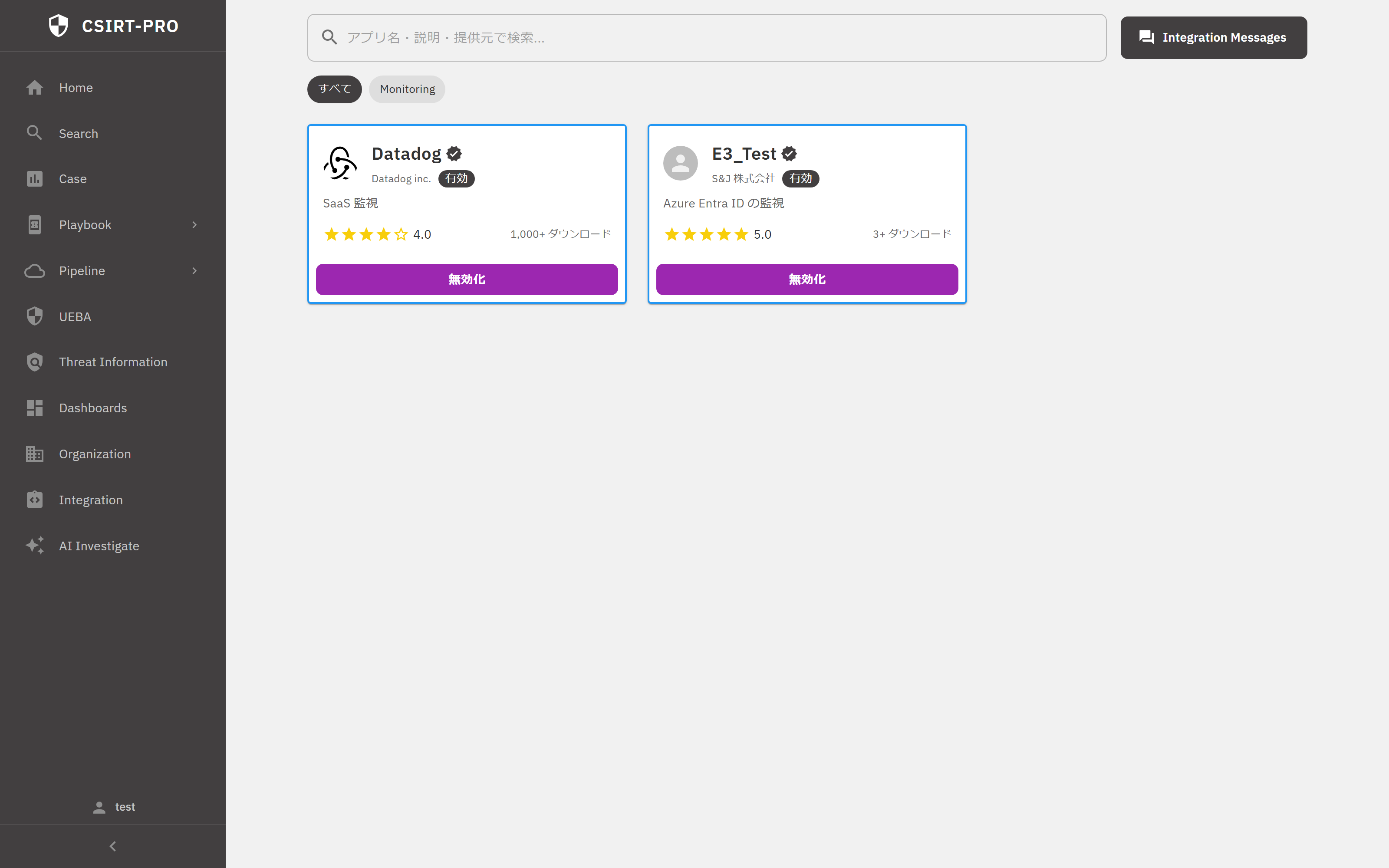 Integration marketplace. The list is data-driven and provided by the server, with category filters and a per-card enable and disable control. The example cards show a monitoring integration and an identity-provider monitoring integration.
Marketplace
Browsing Integrations
Browse available integrations by category.
| Category | Description |
|---|---|
| Communication | Notification integrations such as Slack and Teams |
| Monitoring | Monitoring tool integrations |
| Connector | External data source connections |
| Other | Miscellaneous integrations |
Integration Details
Each integration shows the following information.
- Name and description giving an overview of what the integration does.
- Provider identifying who built the integration.
- Rating as a user star rating.
- Download count as a usage statistic.
- Verified badge marking an officially verified integration.
Enabling an Integration
Activation Steps
- Select an integration from the marketplace.
- Click Enable in the detail modal.
- Review and approve the required permissions.
Provisioned Resources
Depending on the package, enabling an integration can provision related resources. For example, an integration can assign default UEBA groups to your organization on enablement.
| Resource | Description |
|---|---|
| UEBA group | Default UEBA groups can be assigned on enablement |
| Dashboard, Pipeline, or Playbook | May be provided by the integration package |
| SharedAccess | Required access permissions may be granted |
Note
The exact set of provisioned resources depends on the specific integration package. Treat the table above as the kinds of resources an integration may set up, not a guarantee for every integration.
Disabling
An integration can be disabled at any time when it is no longer needed.
Permissions
An integration may request the following permission types.
| Permission | Description |
|---|---|
| log | Read access to log data |
| case | Read and create cases |
| playbook | Execute playbooks |
| pipeline | Manage pipelines |
| load_dashboard | Load dashboards |
| asset | Access asset information |
Review the requested permissions before enabling an integration. Only the permissions required for the integration's functionality are requested.
Integration Chat Dashboard
An enabled integration includes a dedicated chat dashboard. This provides a chat-style interface for viewing notifications and messages related to the integration.
Example: Enabling a Slack Integration
- Open the Integrations marketplace.
- Find Slack Notification in the Communication category.
- Click the integration card to open its details.
- Review the required permissions:
caseandplaybook. - Click Enable.
- The system auto-provisions a notification Playbook that sends case alerts to Slack and a dashboard that shows notification history.
- Configure the Slack token in the Playbook's environment variables.
- The integration is now active.
API Operations
Integrations can also be managed through the REST API. See the API Reference for full endpoint documentation, including the following.
GET /api/organizations/integrations/lists available integrations.GET /api/organizations/integrations/<uuid>/returns integration details.GET /api/organizations/enabled-integrations/lists enabled integrations.POST /api/organizations/enabled-integrations/enables or disables an integration.GET /api/organizations/shared-access/lists SharedAccess rules.POST /api/organizations/shared-access/creates a SharedAccess rule.